Hey there! As a Canvas supplier, I've gotten tons of questions about how to save a Canvas as a JPEG image. It's a pretty common need, whether you're an artist working on digital masterpieces, a developer creating interactive web apps, or just someone who wants to share their Canvas - based creations easily. So, I thought I'd break it down for you in this blog.
Why Save as a JPEG?
First off, let's talk about why you might want to save your Canvas as a JPEG. JPEG is one of the most widely used image formats out there. It's supported by almost every device and software, which means you can share your Canvas - created images on social media, embed them in emails, or print them without any hassle. Plus, JPEGs can compress images well, so you can keep the file size relatively small while still maintaining good quality.
The Basics of Canvas and JPEG Conversion
If you're working with HTML5 Canvas, you're in luck. The HTML5 Canvas API has a built - in method that makes it super easy to convert your Canvas content into an image. The method is called toDataURL().


Here's a simple example of how you can use it:
// Get the canvas element
const canvas = document.getElementById('myCanvas');

// Get the 2D context of the canvas
const ctx = canvas.getContext('2d');

// Draw something on the canvas (for example, a rectangle)
ctx.fillStyle = 'blue';
ctx.fillRect(10, 10, 100, 100);

// Convert the canvas to a JPEG data URL
const dataURL = canvas.toDataURL('image/jpeg');

// Create an anchor element to download the image
const link = document.createElement('a');
link.href = dataURL;
link.download = 'myCanvasImage.jpg';
link.click();
In this code, we first get the Canvas element and its 2D context. Then we draw a simple blue rectangle on it. After that, we use the toDataURL() method with the 'image/jpeg' parameter to convert the Canvas content into a JPEG data URL. Finally, we create an anchor element, set its href attribute to the data URL, and set the download attribute to the desired file name. When we click the anchor element, the browser will download the JPEG image.
Controlling the Quality of the JPEG
The toDataURL() method also allows you to control the quality of the JPEG image. You can pass a second parameter to the method, which is a number between 0 and 1 representing the quality level. A value of 1 means the highest quality (less compression), while a value of 0 means the lowest quality (more compression).
Here's how you can use it to set the quality:
const canvas = document.getElementById('myCanvas');
const ctx = canvas.getContext('2d');
// Draw something on the canvas
ctx.fillStyle = 'green';
ctx.fillRect(20, 20, 120, 120);

// Convert the canvas to a JPEG data URL with 0.8 quality
const dataURL = canvas.toDataURL('image/jpeg', 0.8);

const link = document.createElement('a');
link.href = dataURL;
link.download = 'myCanvasImage_quality.jpg';
link.click();
In this example, we set the quality of the JPEG to 0.8, which is a good balance between file size and image quality in most cases.
Using Libraries for More Advanced Functionality
While the toDataURL() method is great for simple cases, sometimes you might need more advanced functionality. That's where libraries come in handy. One popular library for working with Canvas and image conversion is canvas - to - blob.
First, you need to include the library in your project. You can do this by adding the following script tag to your HTML file:
<script src="https://cdnjs.cloudflare.com/ajax/libs/canvas - to - blob/3.6.0/canvas - to - blob.min.js"></script>
Here's an example of how to use canvas - to - blob to convert a Canvas to a JPEG blob:
const canvas = document.getElementById('myCanvas');
const ctx = canvas.getContext('2d');
// Draw something on the canvas
ctx.fillStyle ='red';
ctx.fillRect(30, 30, 130, 130);

canvas.toBlob(function (blob) {
    const link = document.createElement('a');
    link.href = URL.createObjectURL(blob);
    link.download = 'myCanvasBlobImage.jpg';
    link.click();
}, 'image/jpeg', 0.9);
In this code, the toBlob() method from the canvas - to - blob library is used to convert the Canvas to a JPEG blob. We can then create an object URL for the blob and use an anchor element to download the image.
Real - World Applications
Now, let's talk about some real - world applications where saving a Canvas as a JPEG can be useful.
- Digital Art: Artists can create amazing artworks on a Canvas and then save them as JPEGs to share on their portfolios or social media platforms. For example, an artist can use JavaScript and Canvas to create a unique digital painting and then easily save it for distribution.
- Web Development: Developers often use Canvas to create interactive graphics, games, or visualizations. Saving these Canvas - based elements as JPEGs can be useful for creating screenshots, thumbnails, or sharing previews with clients.
Our Canvas Products
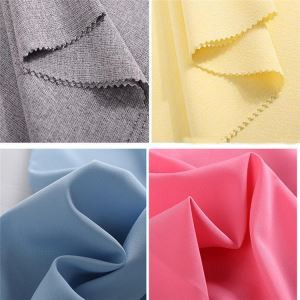
As a Canvas supplier, we offer a wide range of high - quality canvas products. You can check out our Wholesale Cheap Price 65%polyester 35%cotton T/C 65/35 Shirt Fabric Woven, which is perfect for various clothing and textile applications. We also have Fireproof Dyed Fabric for those who need fire - resistant materials. And if you're in the medical field, our 100% Cotton Antichorine Medical Fabric For Uniform is a great choice.
Contact Us for Purchasing
If you're interested in our canvas products, don't hesitate to reach out to us for a purchase discussion. We're always here to help you find the right canvas materials for your needs. Whether you're a small - scale artist or a large - scale manufacturer, we've got you covered.
References
- HTML5 Canvas API Documentation
- MDN Web Docs for JavaScript and Canvas
- Documentation for the canvas - to - blob library